Installing the game
After you buy, you download a small installer that pulls down the RSI Launcher. The Launcher then downloads the game itself — around 100 GB. Plan ahead and pick your install location carefully.
The short version: download the RSI Launcher from your account Library, install it on an SSD, and let it pull down the game — around 100 GB. Keep 150 GB free for scratch space. The five steps below cover every prompt you will see along the way.
Step 1 — Download the RSI Launcher installer
Log into your account at robertsspaceindustries.com. Navigate to your Library (under your account menu in the top right). Star Citizen will appear here after purchase.
Click the Download button next to Star Citizen. This downloads the RSI Launcher installer — a small Windows executable file around 20 MB. This file installs the Launcher itself, not the game.
Step 2 — Install the launcher
Run the installer as you would any Windows application. You may see a User Account Control prompt — allow it. The installer sets up the RSI Launcher application, which is a small program that manages the game download, updates, and launch.
The Launcher installs to C:\Program Files\Roberts Space Industries\RSI Launcher by default. This is fine — the Launcher itself is small. The game files are stored separately and you will choose their location in the next step.
Step 3 — Choose your install location (important)
When you open the RSI Launcher for the first time and start the game download, it will ask where to install Star Citizen. This is the most important decision in the install process.
Requirements:
- Must be an SSD. A hard disk drive (HDD) will make the game nearly unplayable — asset streaming is too slow on spinning media. Do not install on an HDD.
- Free space needed: 150 GB minimum. The current install is around 100 GB. Leave an additional 50 GB buffer for the scratch space the game uses during loading and patches.
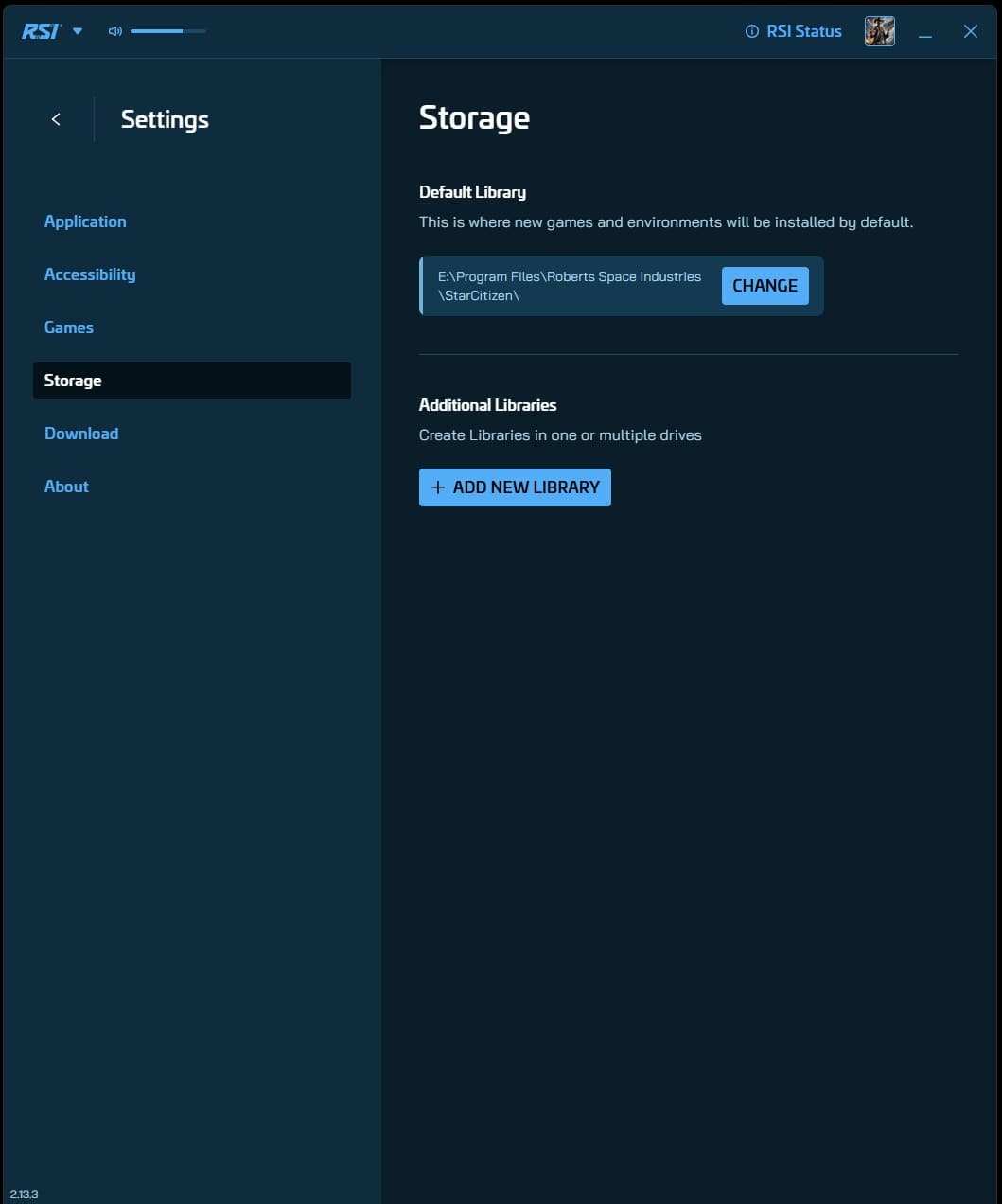
- Prefer a non-system drive. If you have a second SSD or a large NVMe separate from your Windows C: drive, install Star Citizen there. This keeps your OS drive from filling up and can improve load times on some systems.
To change the install path in the Launcher: click the Settings gear icon before you begin the download. There is a Library Folder option that lets you point to any drive.
Step 4 — The download
Click INSTALL in the Launcher. The download begins. On a typical home broadband connection:
- 100 Mbps connection: approximately 2–3 hours
- 50 Mbps connection: approximately 4–5 hours
- 25 Mbps connection: approximately 8–10 hours
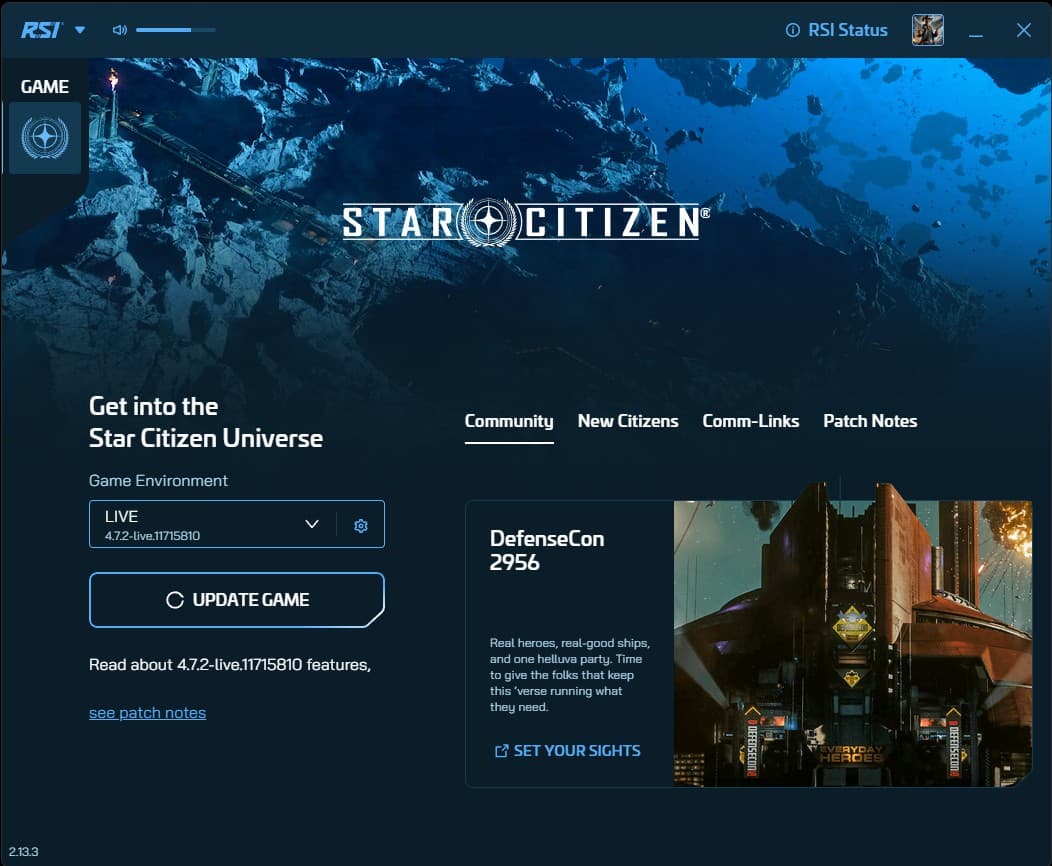
The download can be paused and resumed. You do not need to complete it in one session. The Launcher shows download progress and speed.
Start this download the night before or well in advance of when you want to play. Nothing is more frustrating than buying a game and having to wait hours to touch it.
Step 5 — Firewall prompts
During the install and on first launch, Windows Firewall will ask whether to allow the RSI Launcher and Star Citizen access to the network. Allow both through on public and private networks. Star Citizen is an online-only game — it must communicate with CIG servers to function.
If you use third-party firewall or antivirus software, you may need to add exceptions manually for:
RSI Launcher.exeStarCitizen.exe
Some antivirus programs flag Star Citizen files during download. This is a false positive — the game files are legitimate. Add an exclusion for the Star Citizen install folder in your antivirus settings if you see quarantine warnings.
First launch: shader compilation
After the download completes, the first time you click LAUNCH in the Launcher, the game will pre-compile shaders before showing you anything. This is normal.
Shader compilation can take 20–60 minutes depending on your GPU and CPU speeds. A progress bar will appear. The game is not frozen — it is doing a one-time build of the rendering pipeline for your hardware. This process also runs after major patches that change the rendering system.
Let it finish. Do not force-close the game during shader compilation.
After installation: the Live, PTU, and EPTU builds
The RSI Launcher can download multiple versions of the game — the stable release (Live), the public test environment (PTU), and the early access test environment (EPTU). Each is a separate download. On a fresh install, only the Live version is downloaded.
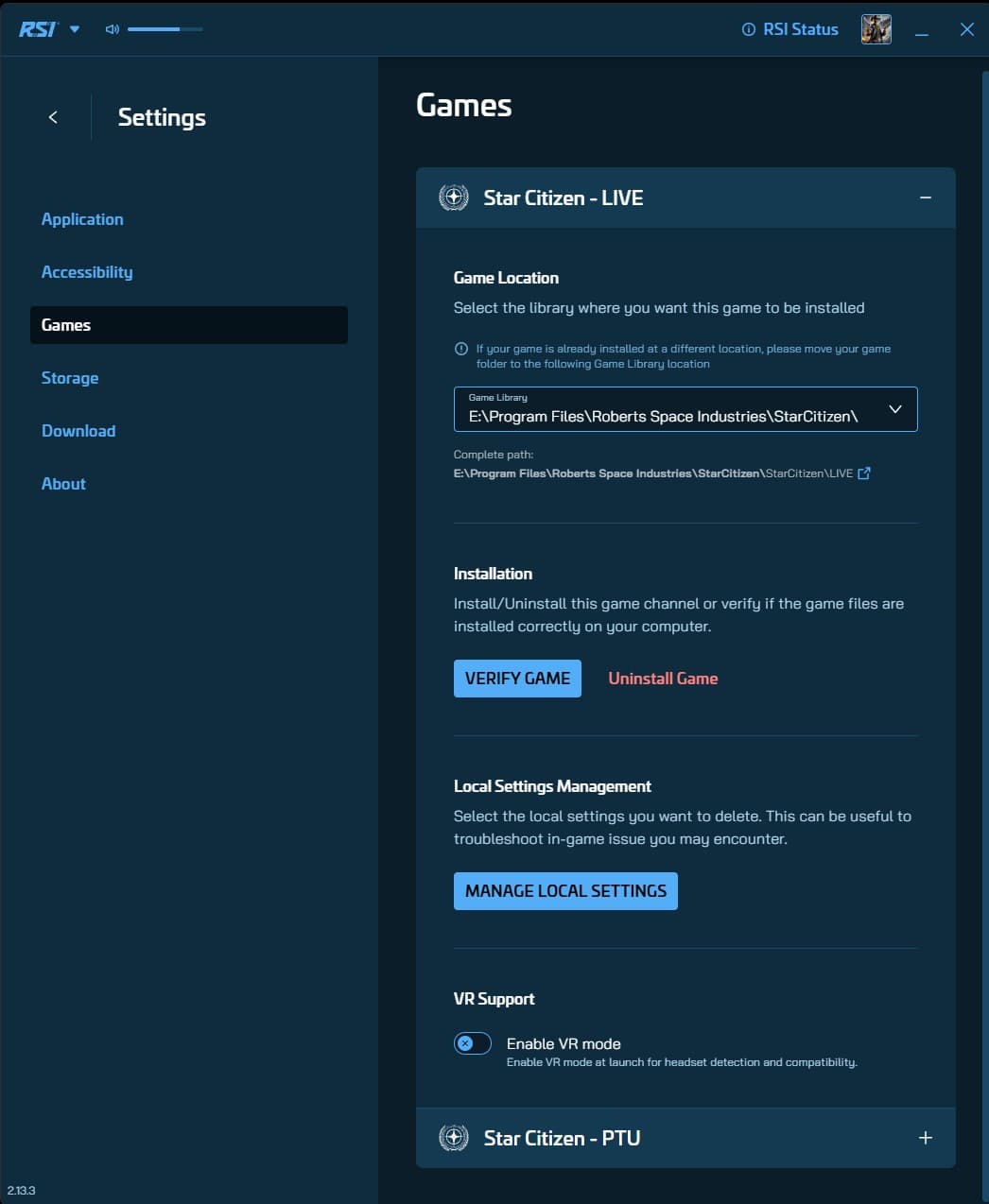
Play on Live for your first sessions. Full details on these environments are in Section 07: Using the RSI Launcher.
Common questions
How big is the download?
Around 100 GB through the RSI Launcher. Keep 150 GB free on your SSD — the game uses extra scratch space beyond the install itself.
Can I install on a regular hard drive?
No. On an HDD the game is nearly unplayable — asset streaming is too slow on spinning media. Use an SSD; NVMe is best.
Why does the first launch take so long?
The game pre-compiles shaders the first time you launch — a one-time build for your hardware that can take 20–60 minutes, with a progress bar. Let it finish. It reruns after major patches that change the rendering system.