Using the RSI Launcher
The RSI Launcher is what you open every time you want to play. Understanding it — particularly the difference between Live, PTU, and EPTU — will prevent confusion on day one.
The launcher interface
When you open the RSI Launcher you will see:
- A large LAUNCH button — this launches the game in whatever channel is currently selected.
- A channel selector — usually in the top area or a dropdown. This switches between LIVE, PTU, and EPTU.
- A patch notes section — shows what changed in the latest update. Worth reading after a major patch to understand what is new or fixed.
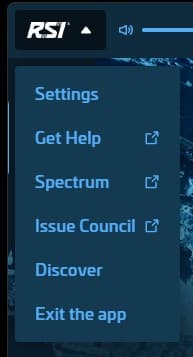
- Settings gear — launcher settings including install location, VRAM allocation for shader cache, and network options.
- A VERIFY button — appears when a channel is selected. Checks all installed files against expected checksums and re-downloads any corrupted or missing files.
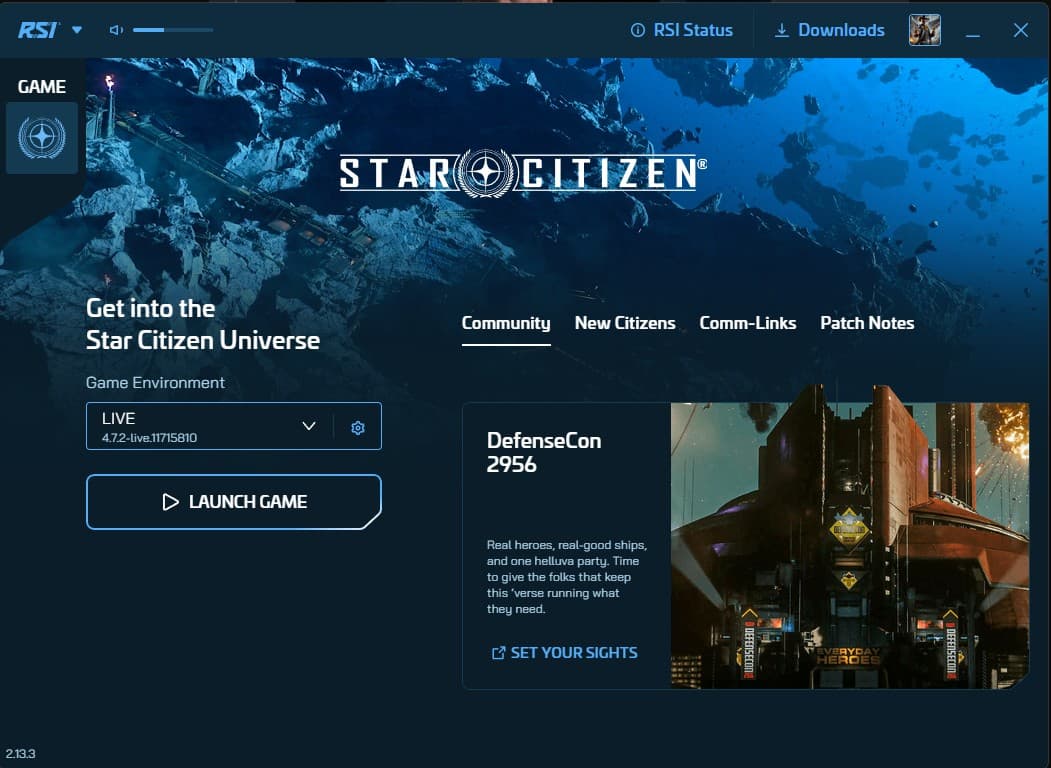
LIVE — the build you want on day one
The LIVE channel is the stable, publicly released version of Star Citizen. It receives updates only after patches have been tested through the PTU process. This is where the majority of the player population is at any given time.
Play on LIVE for your first sessions. It is the most stable option, has the most players online, and your characters and progress here are separate from the test environments.
PTU — the public test universe
The Public Test Universe is a copy of the game running an upcoming patch before it ships to LIVE. When a new major update is in testing, CIG opens it to all players here first.
Key differences from LIVE:
- Your characters and progress are copied from LIVE at the start of a test wave — but changes you make on PTU do not carry back to LIVE.
- Bugs are more common. This is intentional — you are testing a patch.
- Fewer players are online.
- CIG may issue a wipe of PTU characters at any time during testing.
Selecting PTU in the Launcher downloads a separate copy of the game to your drive — it does not overwrite your LIVE installation.
EPTU — early public test
The Early Public Test Universe is even earlier than PTU — it is where the most bleeding-edge builds go before broader PTU testing. Access is sometimes limited to invited testers or specific backer tiers (formerly called Evocati).
As a new player, ignore EPTU. It is unstable by design and exists for catching early bugs before broader testing. Play on LIVE.
How to switch channels
In the Launcher, look for a dropdown near the LAUNCH button that shows the current channel (usually “LIVE”). Click it to see available options. If you switch to a channel you have not downloaded yet, the Launcher will prompt you to download it — this is a full additional copy of the game (another ~100 GB).
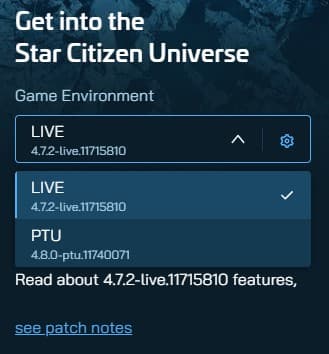
You can have multiple channels installed simultaneously if you have the storage space. Most players only keep LIVE installed and download PTU temporarily during test phases.
Verifying your game files
If the game crashes repeatedly, behaves strangely, or fails to load correctly, the first troubleshooting step is to verify your files:
- Open the RSI Launcher
- Select the channel you play on (usually LIVE)
- Click VERIFY
- Wait — this can take 15–30 minutes as it checks every file
- Any corrupted or missing files will be re-downloaded automatically
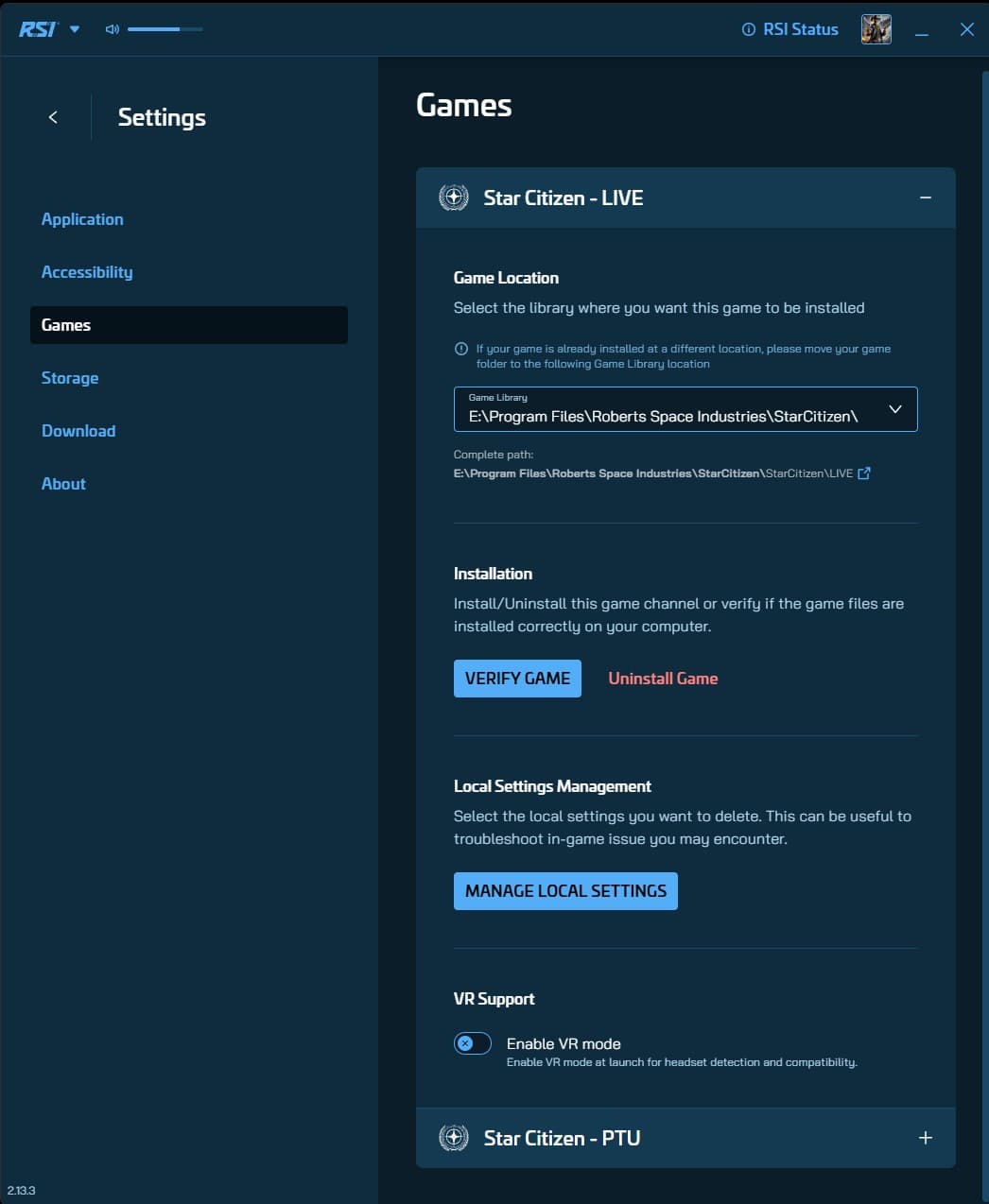
Verify is the fix for a surprising number of issues. If the game was working and then suddenly is not after an update, verify first before deeper troubleshooting.
Launcher settings worth knowing
- Library folder — where the game is installed. Can be changed here if you need to move to a different drive.
- VRAM size — tells the shader compiler how much video memory your GPU has. Set this correctly (your GPU’s actual VRAM amount) for optimal shader cache size.
- Background downloads — the Launcher can download updates in the background while you are not playing. Useful for keeping up with frequent patch cycles automatically.
Common questions
LIVE vs PTU vs EPTU — which one do you play?
LIVE. It is the stable release with the most players. PTU tests the next patch; EPTU tests the patch before it is even ready for PTU. Both are for bug hunting.
Does PTU touch your LIVE progress?
No. Progress copies from LIVE into PTU at the start of a test wave and never carries back. PTU installs as a separate copy of the game.
Game misbehaving after an update?
Select your channel in the Launcher and click VERIFY. It checks every file and re-downloads anything corrupted — fifteen to thirty minutes, and it fixes a surprising number of issues.